How do I save the tabs?
- Open the pages in the same browser window. Open Best Reminder App and click Choose tabs… under Include URL.
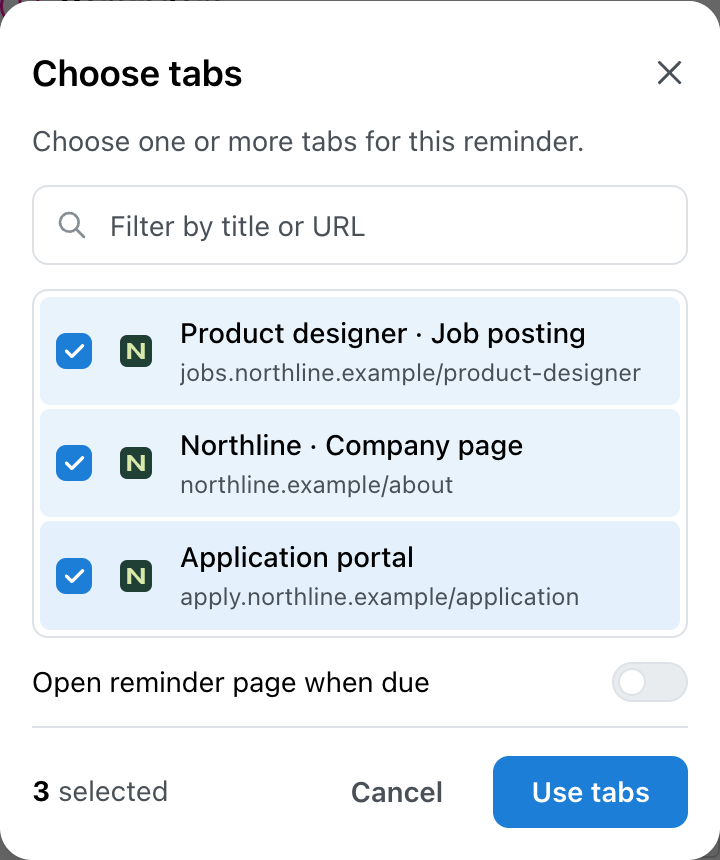
- Pick each page in the order you want to revisit it. You can filter by title or URL. Click Use tabs.
- Back in the form, use Group name to name the list. Choose the date and time, add a note if you want one, and click Remind me. Once it appears in Upcoming, you can close the original tabs.
Will all my tabs open when the reminder fires?
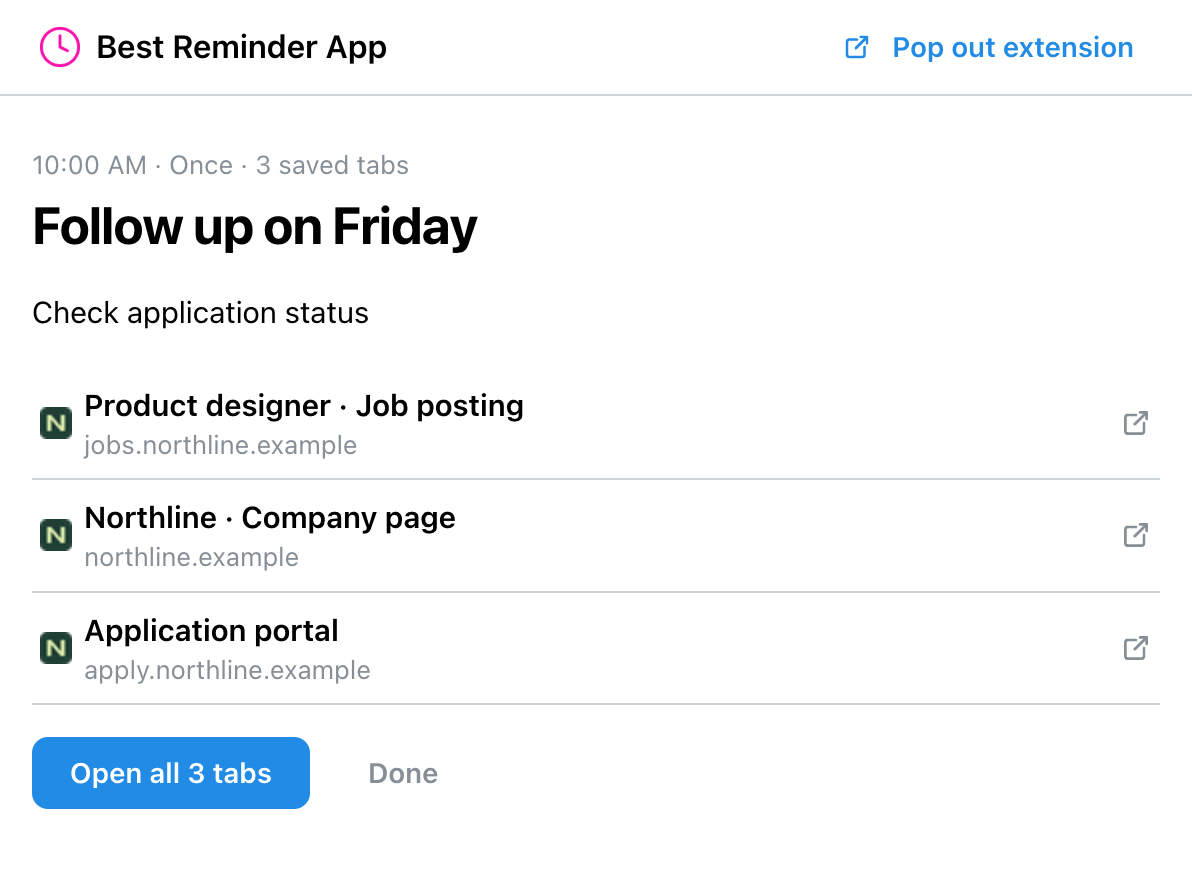
Click the desktop notification to see your saved list. Click the portal for just that website or Open all 3 tabs to open the set. To see the list automatically, turn on Open reminder page when due in the tab picker. The websites open when you choose them from the list.
Watch a study reminder bring three pages back
The exam prep reminder keeps the practice test first, followed by the answer key and study notes. Here, Open reminder page when due is enabled.
Where do the links go after the reminder?
Multi-tab reminders stay in the browser profile where you created them. Look in Past Reminders after a reminder fires. A CSV export keeps one row per reminder, with all its addresses on separate lines in the URL cell. It preserves those links and reminder details. It can’t restore a browsing session or recover a page that has since been removed.