Find an upcoming reminder
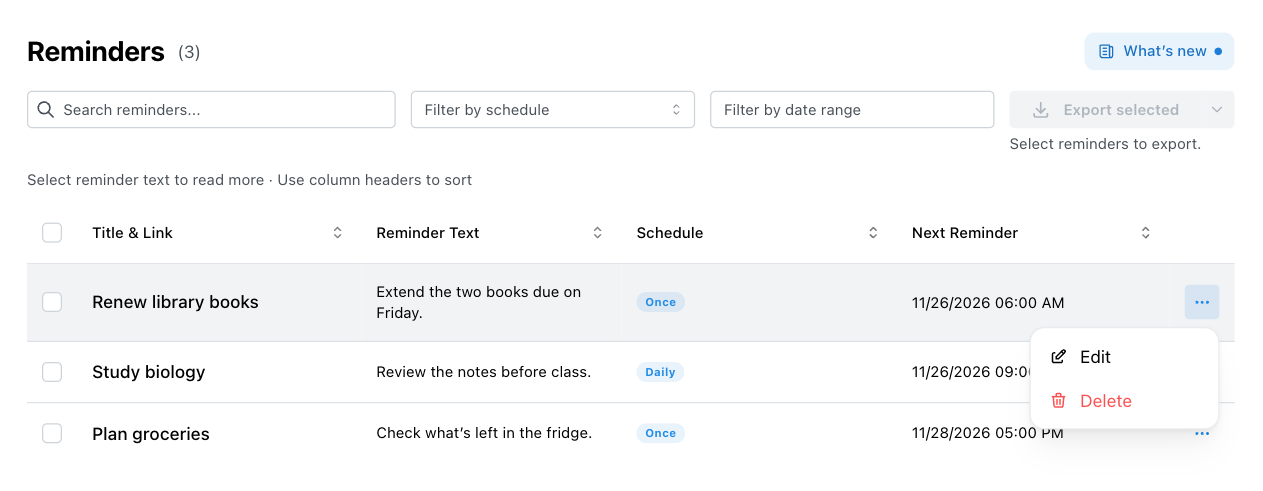
Click the extension’s clock in the Chrome toolbar. Open the three-dot menu in the top right of the popup and choose Reminders. This opens the list of reminders you have scheduled.
If “Renew library books” is somewhere in the list, type library in the search box. Search checks the title, reminder text, and saved URL. You can also filter by schedule or date range. Click a reminder’s text to read the full note.
Edit a reminder
Choose Edit from the row’s three-dot menu. To move your library reminder, pick a future date under When and a time under At, then click Update. You can also change the title, note, or saved link. For a reminder with several saved tabs, use Edit next to the tab count to change which pages it opens.
Use Repeat to change how often it comes back. If the schedule fields are locked, the message under Repeat explains the Cloud Sync restriction. To cancel an upcoming reminder, choose Delete from its row menu and confirm.
Find a past reminder
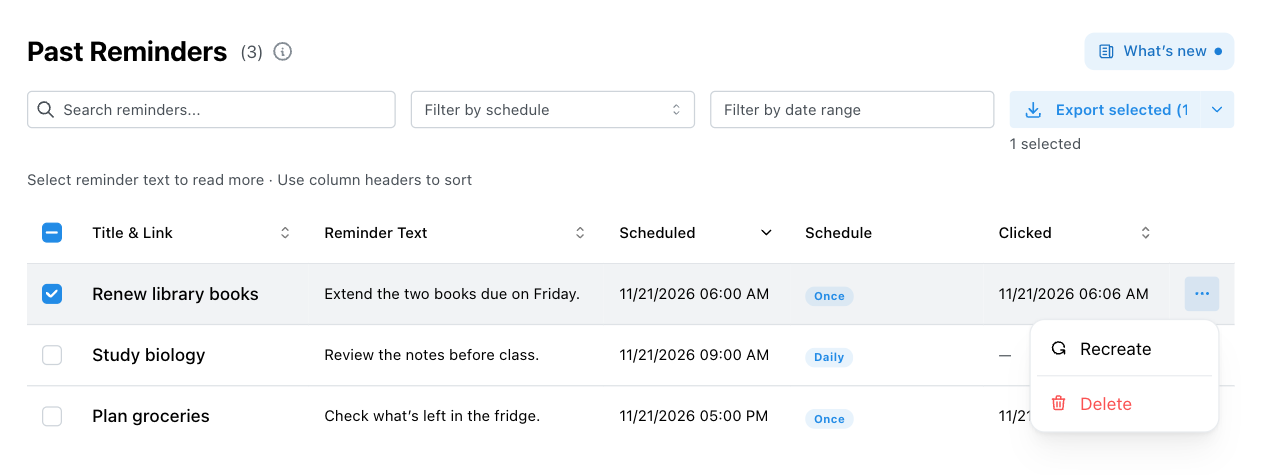
Open the popup’s three-dot menu and choose Past Reminders. This list keeps the 500 most recent past reminders. Search and filters work the same way here. Click the saved link if you just want to revisit the page.
Scheduled shows when the reminder was due. Clicked records when you clicked the notification, including a follow-up after snoozing. A dash means there’s no recorded click.
Recreate a reminder
If you renew your books and get a new due date, open the old reminder’s row menu and choose Recreate. Pick a date and time at least two minutes in the future, then click Recreate. The new reminder keeps the original note, saved page or tabs, any attached page capture, and its repeat pattern.
Export reminders
In either list, check the rows you want to keep. To export a set of search results, filter the list first, then check the box in the table header to select the displayed rows.
Click Export selected to download a CSV you can open in a spreadsheet. If you also want the images from area reminders, open the arrow beside the button and choose ZIP with CSV and crops.